


I Finally Used FORScan on My F-150, and I Didn’t Brick It
I’ve avoided using FORScan for years because I was worried I'd mess something up on my truck.
Not physically break it. More like click the wrong thing, write the wrong value, and suddenly have a very expensive driveway ornament. But I finally decided it was time.
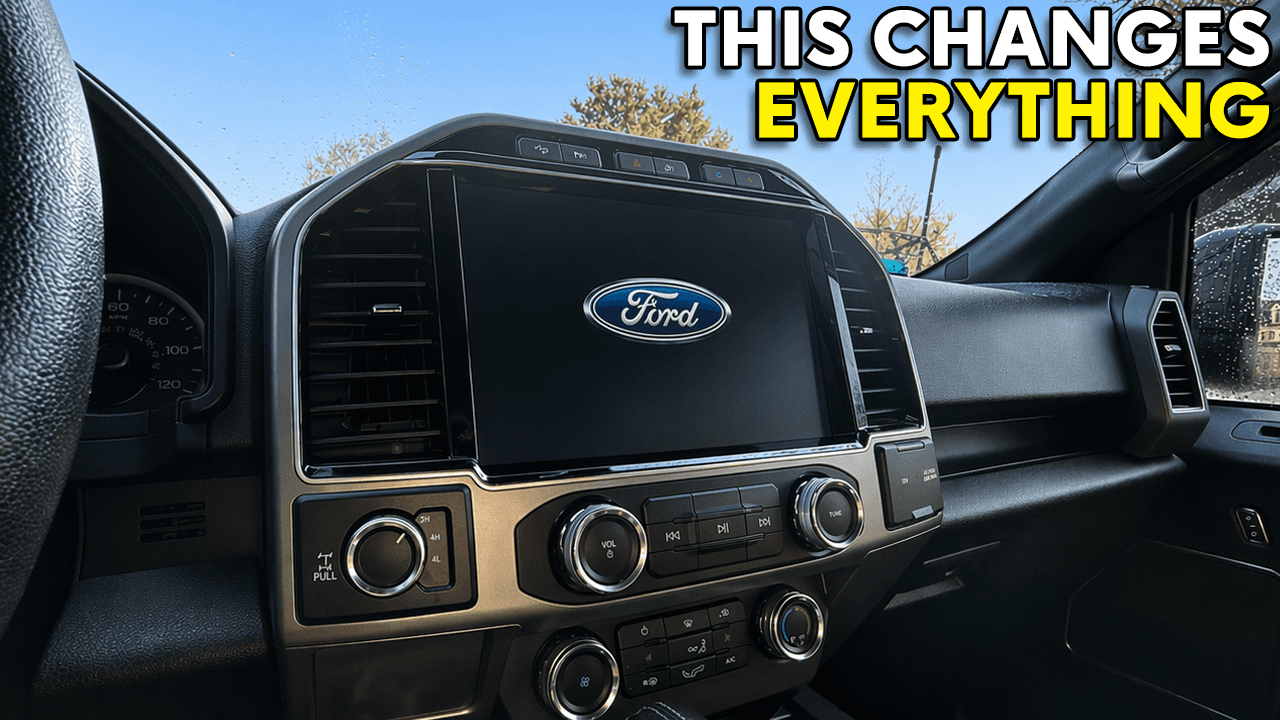
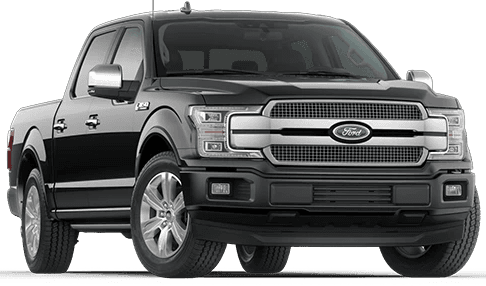
In this video, I used FORScan on my 2018 Ford F-150 for the first time to complete a long list of updates, including one upgrade I’ve wanted to do for a while: swapping the factory 4-inch instrument cluster for the larger 8-inch cluster.
Tools Used
For a complete list of all tools and modifications done to my F150, be sure to visit my Modifications page.
FORScan
OBDLink EX
Windows laptop
2018 Ford F-150
The 8-Inch Cluster Swap
Before removing the original cluster, I used FORScan to back up the factory IPC as-built data. That step matters because the replacement cluster needs to be programmed with the correct configuration from the truck.
The physical install was surprisingly simple. The cluster is held in with four bolts and uses the same connector on the back. Once the new cluster was in place, I loaded the original as-built data into the replacement unit, corrected the odometer reading, and entered the correct engine and idle hours.
That part felt intimidating, but it worked.
FORScan Changes I Made
A prominent guy in the F150, Livinitup, has created a spreadsheet that outlines many of the changes that you can make to your F150 via Forscan: View Google Sheet
Once the new cluster was installed and programmed, I kept going.
In this first round of FORScan updates, I changed or enabled:
8-inch instrument cluster programming
Engine hours and idle hours
Ford Performance splash screen
Engine temperature and transmission temperature display
Bambi mode, allowing fog lights and high beams at the same time
Autolock control in the cluster settings
Tire size calibration for 315/70R17 tires
Heated and cooled seat icons on the screen
Hill descent control
Seat belt reminder changes
The Ford Performance splash screen ended up being my favorite change. It has a personal connection that I’ll explain more in a future video, but seeing that screen come up in the truck was a pretty awesome moment.
Tire Size Calibration
One of the most practical reasons I wanted to use FORScan was to update the tire circumference after moving to 315/70R17 tires.
My speedometer has been off for a while, so I entered the updated tire circumference value and took the truck for a test drive. It still needs a little fine-tuning, but this was a good first step toward getting the speedometer dialed in correctly.
Was FORScan as Scary as I Thought?
Honestly, no.
It still deserves respect. You can absolutely create problems if you change the wrong values or skip backups. But once I had the correct adapter, updated drivers, updated firmware, and saved the original as-built files, the process felt much more manageable than I expected.
There were a few small things I still need to investigate, including a “drive mode not available” message and some additional tire-size tweaking, but overall, the truck worked, the changes took effect, and nothing caught fire.
That’s a win.
Final Thoughts
I put this off for years because I was afraid of breaking something. After finally doing it, I’m glad I jumped in.
FORScan opened up a lot of options for the truck, and this probably won’t be the last time I use it. There are still more settings to explore, more features to test, and a few things I want to clean up after this first round.
If you’ve used FORScan on your F-150, I’d love to know what you changed first.